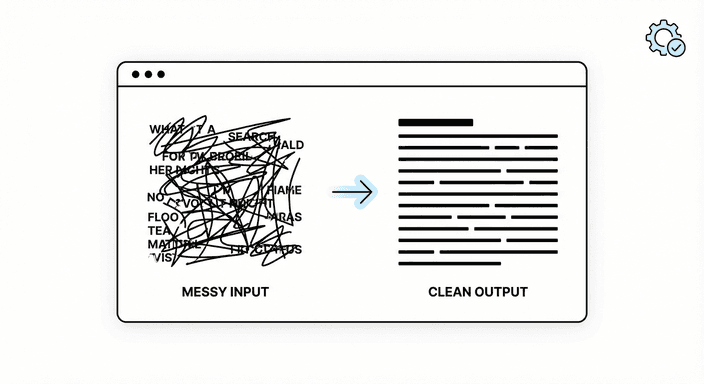
How to Clean Up Messy Text in Seconds (Line Breaks, Spaces, Weird Formatting)
Messy text sneaks in from everywhere: WhatsApp exports, pasted emails, PDFs, transcripts, or copied web pages that drag in hidden characters. If you ship content, you need a repeatable way to clean that mess fast.
Why text gets messy
- Chat apps: Line breaks added after every sentence; emojis swapped for strange symbols.
- PDFs and scans: Invisible characters, random hyphens, and broken paragraphs.
- Web copy/paste: Extra spaces, non-breaking spaces, and HTML artifacts.
- Email threads: Nested quotes and tab characters.
Tip: The sooner you normalize text, the easier it is to format, proof, and publish.
Quick fixes in familiar editors
You can do a lot without special tooling:
- Google Docs / Word: Use Find & Replace to remove double spaces and replace
^p/paragraph markers. - VS Code: Toggle “Render Whitespace,” then use multi-cursor to trim tabs or trailing spaces. Replace
\n\n\nwith\n\nto collapse blank lines. - Notion / Obsidian: Paste as plain text (Shift+Cmd+V / Shift+Ctrl+V) to strip formatting.
Faster fixes with TiniText micro-tools
TiniText is built for these one-click rescues:
- Text Cleaner: Removes tabs, double spaces, and stray blank lines instantly.
- Remove Line Breaks: Rebuilds broken paragraphs, letting you choose to replace breaks with spaces or remove them.
- Case Converter: Fixes accidental ALL CAPS or inconsistent casing.
Workflow (30 seconds):
- Paste the ugly text into Text Cleaner.
- If the paragraphs are broken, run Remove Line Breaks with “replace with spaces.”
- Fix casing with Case Converter.
- Copy the clean output into your CMS or doc.
Build a repeatable cleaning checklist
- Strip formatting first: Always paste as plain text.
- Normalize whitespace: Collapse multiple spaces and blank lines.
- Repair paragraphs: Convert line breaks to proper paragraphs.
- Fix casing: Title or sentence case before proofreading.
- Run a quick diff: Compare original vs cleaned with Text Diff to ensure no content was lost.
When to use heavier tools
- Long PDFs: Use a PDF-to-text converter (Adobe, Smallpdf) before cleaning.
- Tables or CSVs: Open in a spreadsheet tool to re-align columns, then export clean text.
- Big rewrites: Move to Google Docs or Word for track changes after the quick clean.
Make “clean before you paste” a habit
- Pin TiniText in your browser.
- Create a keyboard shortcut to open Text Cleaner.
- Batch-clean multiple snippets: clean once, then paste everywhere.
How TiniText fits
- Text Cleaner: removes hidden characters, tabs, and double spaces.
- Remove Line Breaks: restores paragraph flow.
- Text Diff: confirms the meaning stayed intact.
Note: If you spot garbled characters after cleaning, switch encoding view in your editor or repaste as UTF-8 text.